


Laverna is a free and open source self-hosted note-taking web application, it’s similar to Google Keep, Microsoft OneNote, and Evernote. If you want to try installing it on your own server then this post is for you.
This post will present a step by step guide on how to install Laverna for free on Cloud9 for development purposes, please note that it’s not advisable to install a Production version of Laverna on Cloud9 as the free tier isn’t designed for that intended purpose. Now, and without further ado let’s dive into the tutorial.
Prerequisite
First, you’ll need to sign-up for the free version of Cloud9.


Installation
Step One
After signing up and confirming your email, you’ll be directed to your dashboard, just click on the “add workspace” plus sign.


Step Two
You’ll be directed to a new window where you should set up your workspace, select the PHP option and then create the workspace.
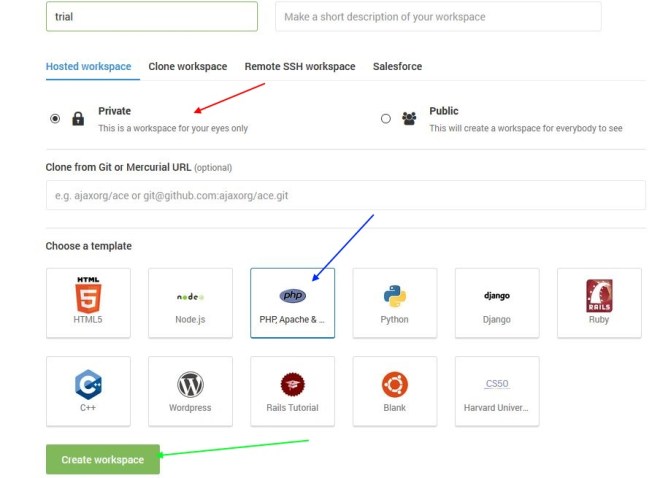

Step Three
You’ll then be directed to your workspace, in the terminal just download the latest release of Laverna using “wget”, at the time of writing this post the command should be as follow;
wget https://github.com/Laverna/static-laverna/archive/gh-pages.zip -O laverna.zip
Step Four
After the download is complete, just unzip the downloaded folder using the following command;
unzip lav*
Step Five
Move the content of the unzipped folder to your root directory, by simply dragging and dropping them using the Workspace side menu (i.e in the screenshot below, moving the files from static-laverna-gh-pages folder to the trial folder).


Step Six
Now, just click on the “Run Project” arrow, then click on the “Preview”, the portal window will appear in a browser like side-window.


Step Seven
Now, you’ll be directed to the first window where you can import previous notes created using Laverna.


Step Eight
Now, you can start adding notes by simply clicking on the plus sign (+) on the top.


Congratulations, now you have a fully functional installation of Laverna on Cloud9. But, remember this installation should be for development purposes only and not for production.