


OSClass is a free and open source classifieds CMS, classifieds are websites where people can post about things they want to sell and interested buyers can contact them. If you’re interested in trying to install OSClass on a test server (know the dependencies, errors, etc.) before installing a production version on your own server then you’re in the right spot.
This post will present a step by step guide on how to install OSClass for free on Cloud9 for development purposes, please note that it’s not advisable to install a production version of the web application on Cloud9 as the free tier isn’t designed for that intended purpose. Now, and without further ado let’s dive into the tutorial.
Prerequisite
First, you’ll need to sign-up for the free version of Cloud9.


Installation
Step One
After signing up and confirming your email, you’ll be directed to your dashboard, just click on the “add workspace” plus sign.


Step Two
You’ll be directed to a new window where you should set up your workspace, select the PHP option.


Step Three
First, download OSClass using the following command;
wget https://static.osclass.org/download/osclass.3.7.4.zip
Step Four
Second, unzip the downloaded package using the following command;
unzip os*
Step Five
Now we need to update php, use the following commands to do so;
sudo apt-get -y update
sudo add-apt-repository ppa:ondrej/php
sudo apt-get -y update
sudo apt-get -y install php5.6 php5.6-mcrypt php5.6-mbstring php5.6-curl php5.6-cli php5.6-mysql php5.6-gd php5.6-intl php5.6-xsl php5.6-zip
sudo a2dismod php5
sudo a2enmod php5.6
sudo service apache2 restart
Step Six
On the side-menu locate the file entitled config-sample.php and rename it to config.php.


Step Seven
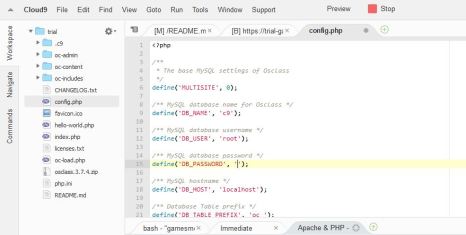
Now, double-click on the config.phpfile and a new window will appear, in the database name type c9 and in the database user type root and in the password make it empty, it should look like the screenshot below.

Step Eight
Now, just click on the “Run Project” arrow, then click on the “Preview”, the installation window will appear in a browser like a side-window.


Step Nine
In this window, just hit the “Install” tab.


Step Ten
In the first step, the installation will check for per-requites, just hit the “Run the install” tab.


Step Eleven
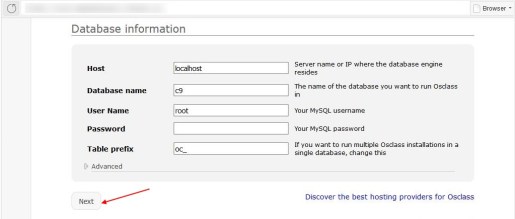
In the second step, you have to enter the database credentials, they’re the same as the ones you’ve created in step 7.

Step Twelve
In the third step, you’ll have to create your installation credentials, username, password, email, etc.


Step Thirteen
In the final step of the installation process, just hit the “Finish and go to the administration panel”.


Step Fourteen
You’ll then be directed to the login window, just use the credentials you’ve created in step 12 to login.


Step Fifteen
You’ll then be directed to the backend of your portal.
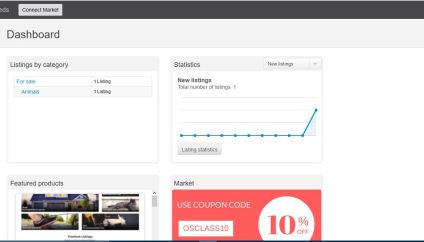

Congratulations, now you have a fully functional installation of OSClass on Cloud9 IDE. But, remember this installation should be for development purposes only and not for production.